
My sister told me that her iPhone 14 Pro Max wasn’t charging beyond 80%. She thought the phone was broken — but it wasn’t. According to recent reports, many iPhone users have been facing this issue.
Reports suggest that users of the latest iOS versions are experiencing this problem. Let’s understand why this happens and how to fix it.
Why Does the iPhone Stop Charging at 80%?
1. Optimized Battery Charging – Apple has introduced a feature designed to maintain battery health. This feature temporarily stops charging once the battery reaches 80%.
2. Battery Temperature – If the battery gets too hot, the iPhone may stop charging. This is a safety measure to prevent battery damage.
3. Software Glitches – Sometimes, software issues can also prevent the iPhone from charging beyond 80%.
How to Check if Optimized Battery Charging Is On
If you suspect Optimized Battery Charging is enabled, you can confirm it in settings:
Settings > Battery > Battery Health & Charging > Optimized Battery Charging
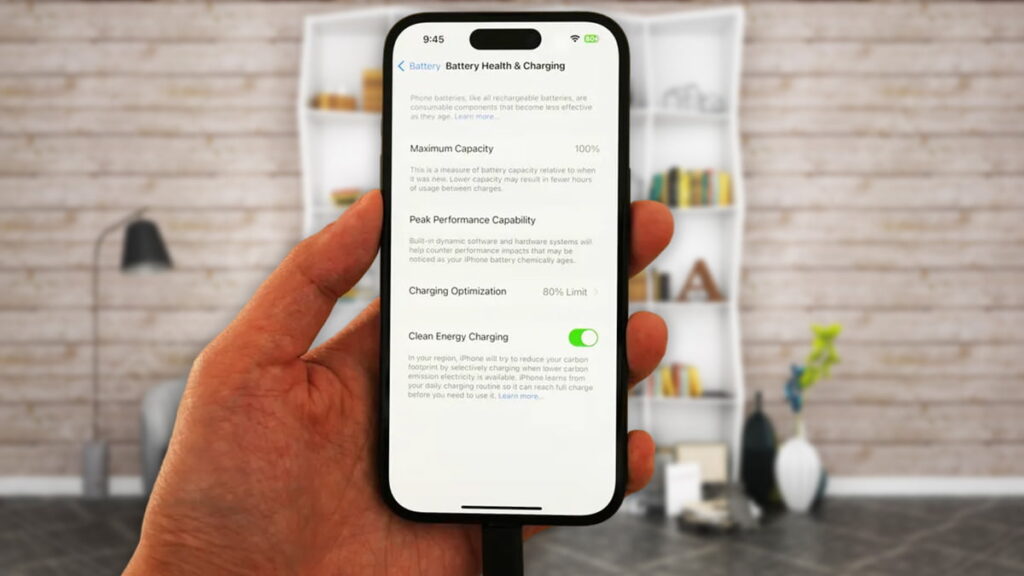
On the iPhone 15, there are three charging optimization features to help maintain battery health. You can find them under:Settings > Battery > Charging Optimization
- Optimized Battery Charging – Learns your daily charging routine and delays charging beyond 80% when enabled.
- 80% Limit – Charges only up to 80%, then stops. If the battery drops below 75%, it charges again until it reaches 80%.
- None – Disables charging optimization and charges to 100% whenever plugged in.
How to Fix iPhone Not Charging Above 80%
1. Turn Off Optimized Battery Charging
Go to:Settings > Battery > Battery Health & Charging and toggle off Optimized Battery Charging.
2. Restart Your iPhone
A restart can fix minor software glitches.
3. Update iOS
Go to:Settings > General > Software Update and install the latest version.
4. Check Your Charger and Cable
Ensure your charger and cable are functioning properly. Faulty accessories can also cause charging issues.
Tips to Control Battery Temperature
Right now, temperatures are extremely high in India. If your iPhone stops charging at 80%, try the following:
- Avoid Direct Sunlight – Keep your phone out of direct sunlight.
- Avoid Heavy Usage While Charging – Don’t play heavy games or stream videos while charging.
- Remove the Phone Case – Taking off the case during charging can help keep the phone cool.
If you still face the issue after following these steps, contact Apple Support. Your battery may need replacement.
Will Turning Off Optimized Battery Charging Affect My Battery Life?
Yes — this feature helps maintain long-term battery health. Turning it off may affect your battery over time.
My iPhone’s Battery Is Draining Quickly. What Should I Do?
Check background activity and close unnecessary apps. You can view detailed usage in battery settings.
Bottom line: If your iPhone isn’t charging beyond 80%, don’t panic. This is a common issue, and in many cases, a simple settings adjustment can fix it. Hopefully, these tips will help you out.